Email is the single best place to start with AI, for one reason: you already know what a good email looks like. You will spot a bad draft instantly, which makes it safe to let a machine take the first pass.
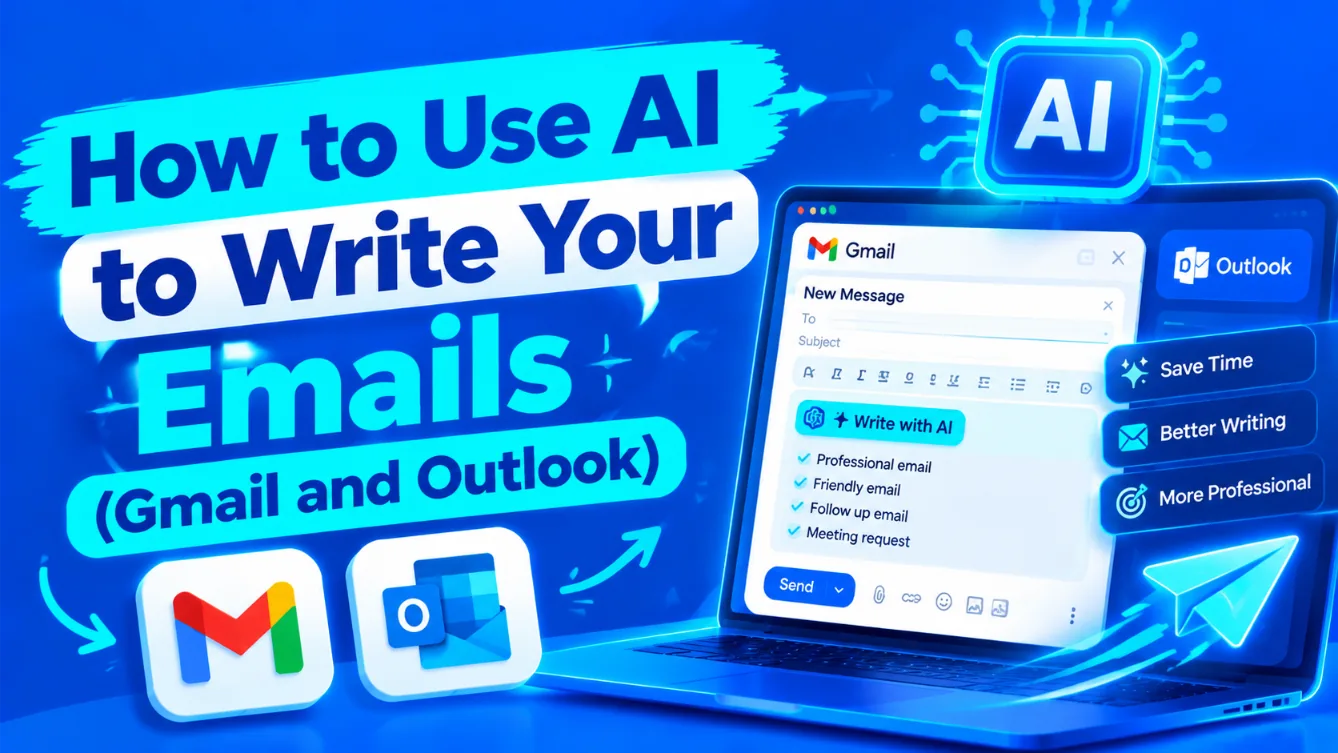
This guide covers the method that works in any email app, the features built into Gmail and Outlook, and the one instruction that stops the output sounding like a press release.
The method that works everywhere
Before touching any built-in feature, learn this. It works with any chatbot, on any email provider, on free plans, and it gives you far more control than a button inside your inbox.
Open a chatbot in a second tab and give it four things: who you are writing to, what you want to happen, the tone, and the length. Not one of those is optional, and most bad AI emails are missing at least two.
Write an email to a client who has not paid an invoice that was due three weeks ago. I have already sent one polite reminder. I want to keep the relationship. Firm but not aggressive. Under 120 words. No subject line yet.
Compare that with “write an invoice reminder email” and the difference is not subtle. The first produces something you can send after a small edit. The second produces something that reads like a template, because that is effectively what you asked for.
The instruction that stops it sounding like AI
There is a recognizable register that AI drafts fall into: “I hope this email finds you well”, “I wanted to reach out regarding”, “Please do not hesitate to contact me”. Recipients notice. Some of them mind.
The fix is to ban the specific phrases rather than asking for a different tone:
Do not start with “I hope this finds you well” or “I wanted to reach out”. Do not end with “please do not hesitate”. Write it the way a busy person actually types. Short sentences. No corporate filler.
An even better trick: paste in two or three emails you have genuinely written in the past and say “match this writing style”. That gets closer to your voice than any adjective will.
Using what is built into Gmail and Outlook
Both Gmail and Outlook now have AI writing features built directly into the compose window — Gemini in Gmail, Copilot in Outlook. When they are available to you, they are convenient, because they can see the thread you are replying to without you pasting anything.
One honest warning before you go looking for them. Availability is genuinely confusing right now. Which features you get depends on your account type, your country, your language and your plan, and it has been changing. When we checked, published guides openly contradicted each other on whether the main drafting feature is included on a free personal account or needs a paid plan.
So rather than repeat a claim that may be wrong for you: open a new email and look at the compose window. If an AI drafting option is there, you have it. If it is not, check your provider’s own plan page — and in the meantime the copy-paste method above costs nothing and works regardless.
Replies are easier than new emails
If you are starting out, start with replies. The incoming message supplies most of the context, so there is less for you to explain and less for the AI to invent.
Paste the email you received, then say what you want to happen:
Here is an email I received. Draft a reply that says yes to the work, pushes the start date to the first week of next month, and asks for the brief in writing before I quote. Friendly, under 100 words.
Declining is where this earns its keep. Most people take far too long writing a polite no. Ask for three versions at different levels of firmness and pick one.
Subject lines
Write the email first, then ask for subject lines based on it — not the other way round. Ask for five, specify plain and specific over clever, and pick the one that tells the recipient what the email is about before they open it.
For anything that needs an action, say so: “the subject line should make clear a reply is needed by Friday”.
| What you type | What you get back |
|---|---|
| “Write an invoice reminder email” | A template. Polite, generic, obviously not written by you |
| Who it is for + what you want to happen + tone + length | A draft you can send after one small edit |
| The above, plus two emails you actually wrote | A draft in something close to your own voice |
What not to paste in
Everything you paste into a chatbot leaves your machine. Treat it like talking in a public place.
- Client contracts, NDAs, and anything you are contractually obliged to keep private
- Bank details, card numbers, passwords, API keys
- Other people’s personal information — addresses, medical details, ID numbers
- Anything you would not want quoted back to you
For most emails this is not an issue. When it is, write that one yourself. It takes ten minutes and removes the question entirely.
Always read it before you send
AI drafts invent specifics with total confidence: dates you never agreed, prices you never quoted, a project name that is almost but not quite right. The draft reads smoothly, which is exactly what makes the error easy to miss.
Read every draft once, slowly, checking names, dates, numbers and promises before you hit send. If you want to understand why this happens and how to catch it reliably, we covered it in why ChatGPT makes things up.
Where this stops being worth it
Short emails. If the reply is “Yes, Tuesday works”, typing it is faster than describing it. The gain is in the emails you have been putting off for three days — the awkward ones, the long ones, the ones where you cannot find the first sentence. That is where a mediocre first draft is worth a great deal.